Working with Code Quality Gates
Quality gates help teams maintain high standards by defining specific criteria that code must meet before being accepted. DCode allows you to create and manage quality gate profiles, enabling automated checks against your codebase.
How Quality Gates Work
Configuring a quality gate is a two-step process. First, you define a quality gate profile by selecting relevant metrics and specifying the threshold values that your code must satisfy. Next, you configure your CI pipeline to analyze the code and submit the resulting quality reports to DCode.
Once both steps for a project are complete, DCode automatically evaluates each analysis against the selected quality gate profile. After every run, DCode determines whether the defined criteria are met and reports the outcome as either pass or fail. If the quality gate fails, the CI pipeline is marked as failed and provides clear error messages to help you identify and address the issues.
Defining Quality Gate Profiles
Quality gate profiles are a customized way to define your code quality standards. Using this feature, you can choose the metric to use and the corresponding thresholds that must be met for the quality gate to pass. DCode currently supports the following metrics for quality gates:
Fitness Score: The score considers the ratio of smelly to non-smelly artifacts in the codebase and provides an overall measure of code quality. It ranges from 0 to 1, with higher values indicating better quality.
Code Smells Density: This metric measures the number of code smells per thousand lines of code (KLOC). DCode gives higher weight to architecture and design issues. Specifically, smell density = 0.5 * (total arch smells * 1000)/LOC + 0.3 * (total design smells * 1000)/LOC + 0.2* (total implementation smells * 1000)/LOC; a lower density indicates better code quality.
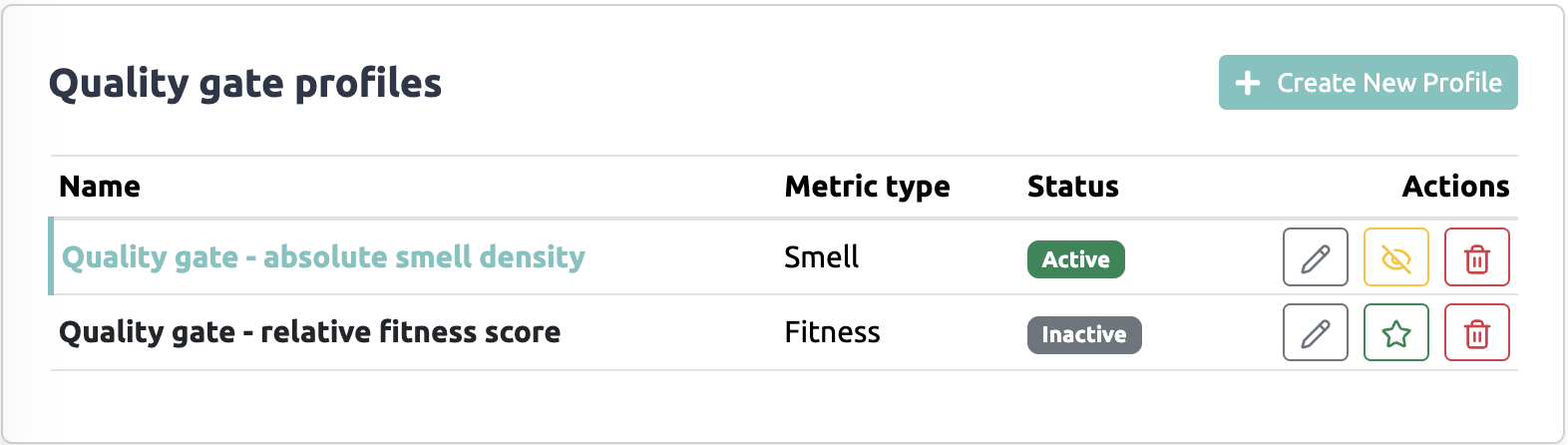
To create a quality gate profile, navigate to the Quality gate profiles section in the project settings (by clicking on the gear icon on the project card) and click on the “Create New Profile” button. It will open a 3-step wizard. Specify a suitable name, then select the desired metric, and set the threshold values according to your project’s quality standards.
For each metric, you can choose an absolute or a relative threshold. An absolute threshold requires the metric for the newly analyzed commit to be above (or below) a fixed value. In contrast, a relative threshold requires the metric to improve (or not degrade) relative to the previous N commits, where N can be set to 1-10. With relative thresholds, you can ensure your code quality continuously improves over time. For practical reasons, DCode allows you to specify a leniency margin when using relative thresholds. This margin provides some flexibility in meeting the quality gate criteria.
You may define multiple quality gate profiles for a project, each with different metrics and thresholds, to suit various development scenarios or branches. However, at a time, only one quality gate profile can be active for a project.
See also
- Configure Your GitHub CI Pipeline
Configure your CI pipeline to automatically evaluate quality gates.
What you’ll get
Once a quality gate profile is defined and your CI pipeline is configured, DCode automatically evaluates each analysis against the selected profile. After every CI triggering event, DCode determines whether the defined criteria are met and reports the outcome as either PASSED or FAILED. An example message from DCode is shown below that will be visible in your GitHub Actions. Your CI pipeline will be marked as failed if the quality gate fails.
{"message":
    //...
    "quality_gate":
        {"is_active":true,"details":
            {"threshold_type":"fitness_absolute","threshold_value":0.53,"calculated_value":0.55},
            "profile_name":"qgate fitness absolute","result":"PASSED"
        }
}
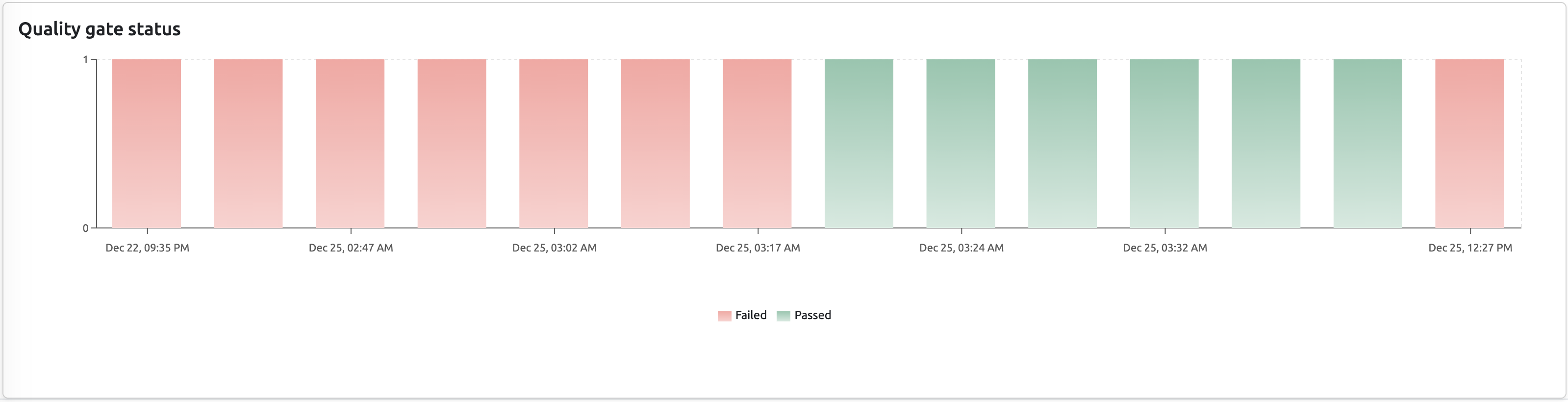
In addition, you may see the passed and failed quality gate results in the DCode dashboard under the Quality gate status section of Code quality trends page.